Stop Drowning in PNGs: A Modular Prompt Management Workflow for ComfyUI & Stable Diffusion
Published October 23, 2026 · 6 min read
Every serious ComfyUI and Stable Diffusion creator eventually hits the same storage crisis: an output folder crammed with 4,000+ PNG files.
You remember nailing a skin texture, a cinematic backlight or a retro line-art look three weeks ago. But when you open that old generation and read its prompt, you get one monolithic wall of text:
score_9, score_8_up, masterpiece, 1girl, solo, volumetric dust, rim lighting, f/1.4 85mm portrait, octane render, trending on artstation, highly detailed eyes, realistic skin texture, intricate lace dress, cyberpunk alleyway, wet pavement reflections...
Reusing it for a different subject is painful. You have to carefully cut out the girl, the dress and the alleyway without deleting the lighting and lens terms that made the image work.
Here is how to move from monolithic prompts to a searchable system of reusable tokens on your own computer.
1. Why monolithic prompts don't scale
Most creators keep prompt recipes in Notion, Obsidian or plain .txt files. Whole-string notes run into three problems:
- 1Entangled parameters: subject, lighting, camera and style are glued into one string, so you can't lift out just the part you liked.
- 2Search that doesn't show anything: searching your notes for volumetric lighting returns hundreds of hits, and none of them show what it actually looked like.
- 3Boilerplate clutter: the same quality tags and negative prompt are repeated in every note, burying the few words that make each image different.
2. Think in atomic tokens
Instead of treating a prompt as a sentence, treat it as a set of small, labeled pieces. mysnipbox sorts every tag into six fixed categories, which is a good model for how to think about it:
| Category | Example tokens | How reusable? |
|---|---|---|
| Subject | cybernetic samurai, vintage roadster | Usually one-off |
| Style & Medium | 3d digital render, claymation texture | High: your signature look |
| Action & Pose | front view, centered composition | High |
| Attire & Details | black turtleneck sweater, knitted blue scarf | Medium |
| Environment | seamless studio backdrop, wet pavement reflections | Medium |
| Lighting & Palette | soft studio diffusion, vibrant pastel palette | High |
Once the pieces are separate, a new image is just a new Subject dropped into lighting, style and composition tokens you already know work.
3. Build the library with mysnipbox
Splitting 500 old prompts into a spreadsheet by hand takes days. mysnipbox does the splitting for you, on your own machine:
- Decompose from the image itself: add a generation to your Vault and an AI vision model (your own cloud key, or a local model through Ollama) reads it and sorts it into tags across the six categories. Because it reads the picture, it doesn't depend on metadata still being embedded in the file, which re-uploads and screenshots often lose.
- Search by what you can see: filter the Vault by tag and open Tag Insights to see which tags are used together and thumbnails of what each tag actually looks like in your own images.
- Keep projects apart: use Personas for a character, a client or a style, so each one's images, tag filter and Tag Insights stay separate.
- Assemble and reuse: click tags into the Prompt Basket, add
{subject}-style variable slots, save it as a template and copy the result in Comma, Underscore or Hyphen format, ready to paste into ComfyUI or Automatic1111. - Light and local: it's a Tauri desktop app (about 120 MB of memory when idle) and the library lives in a local SQLite database on your disk. You can export your prompt templates as JSON and your Tag Insights data as CSV.
- studio portrait21
pastel color palette
Used in 31 images
Frequently paired with
- soft drop shadow 19%
- centered composition 12%
- cursive script font 10%
- 3d digital rendering 9%
Example images
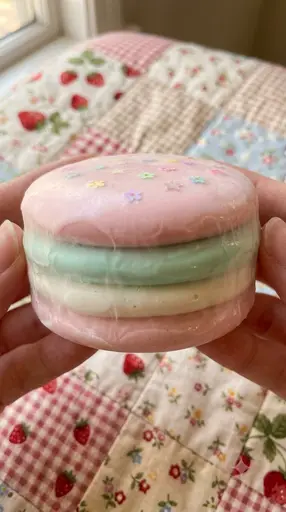

- +28 more
A 10-minute starter workflow
- 1Pick your 20 best generations and add them to the Vault.
- 2Open Tag Insights and find the lighting and style tags that show up again and again.
- 3Create a Persona for the look you want to repeat.
- 4Click your favorite lighting, style and composition tags into the Prompt Basket and add a
{subject}variable. - 5Save it as a template. From now on, a new image is: load the template, fill in the subject, copy.
Inspector · Subject
Prompt Output
a {subject} forging a blade in a dim workshop, wearing a {color} leather apron, cinematic lighting, 35mm lens, volumetric fog, hyperdetailed
Swap {subject} and {color} per render — everything else in the template stays locked.
{variable} slots come together in the Prompt Basket, with the assembled prompt shown below.Want to try it first? The browser demo runs the same flow with sample images.